CLI Usage
Seshat CLI app is the fastest way to use the agent runtime today. It is built for developers, vibecoders, open-source contributors, and technical users who want an AI coding agent in the terminal, whether they are pushing Seshat forward, working inside their own repository, or running local models and cheaper LLM providers without losing the serious tooling surface.
The CLI is both a real product and a proving ground. It lets us validate agent workflows, tool UX, provider setup, MCP integration, skills, permissions, and session design before features become part of the official desktop experience. It is the shortest feedback loop between the runtime engine and real users.
Who the CLI is for
This CLI app is not a toy shell wrapper around a prompt. It is a terminal-first agent workspace for people who want a coding assistant, an autonomous coding tool, a repo-aware AI terminal, or a practical way to work with LLMs through a TUI instead of a browser chat. If you care about speed, scripting, keyboard flow, local inference, lower model cost, or testing agentic features before they land elsewhere, this is the right surface.
Use Seshat in real codebases, inspect files, run commands, switch models, and pressure-test the runtime against production-like work.
Stay in flow with a terminal agent that can reason over a repo, apply structure, and work with cheaper providers instead of premium-only defaults.
Use the same CLI surface we use internally to discover rough edges, test features early, and help shape what becomes stable in the engine and desktop app.
Run Ollama or other compatible providers, plug in lower-cost APIs, and keep a strong tool surface even when optimizing for price or privacy.
Use seshat chat when you want the full TUI and a long-running agent session. Use seshat run when you want one prompt, one answer, and no interactive shell.
The commands that matter first
You do not need the entire command surface on day one. These are the commands that define the real CLI workflow right now: starting a chat, running a one-shot task, checking config, managing sessions, and validating optional tooling.
seshat chat
seshat run "Summarise this repo and suggest the next useful change"
seshat config --print
seshat sessions list
seshat setup --checkseshat chat opens the interactive TUI and is the default entry point for most users.
seshat run is the fast path for scripting, tests, and quick repo-level prompts.
seshat config selects providers, models, credentials, and search-provider keys.
seshat sessions lists, resumes, deletes, and prunes saved conversations.
Start with the interactive TUI
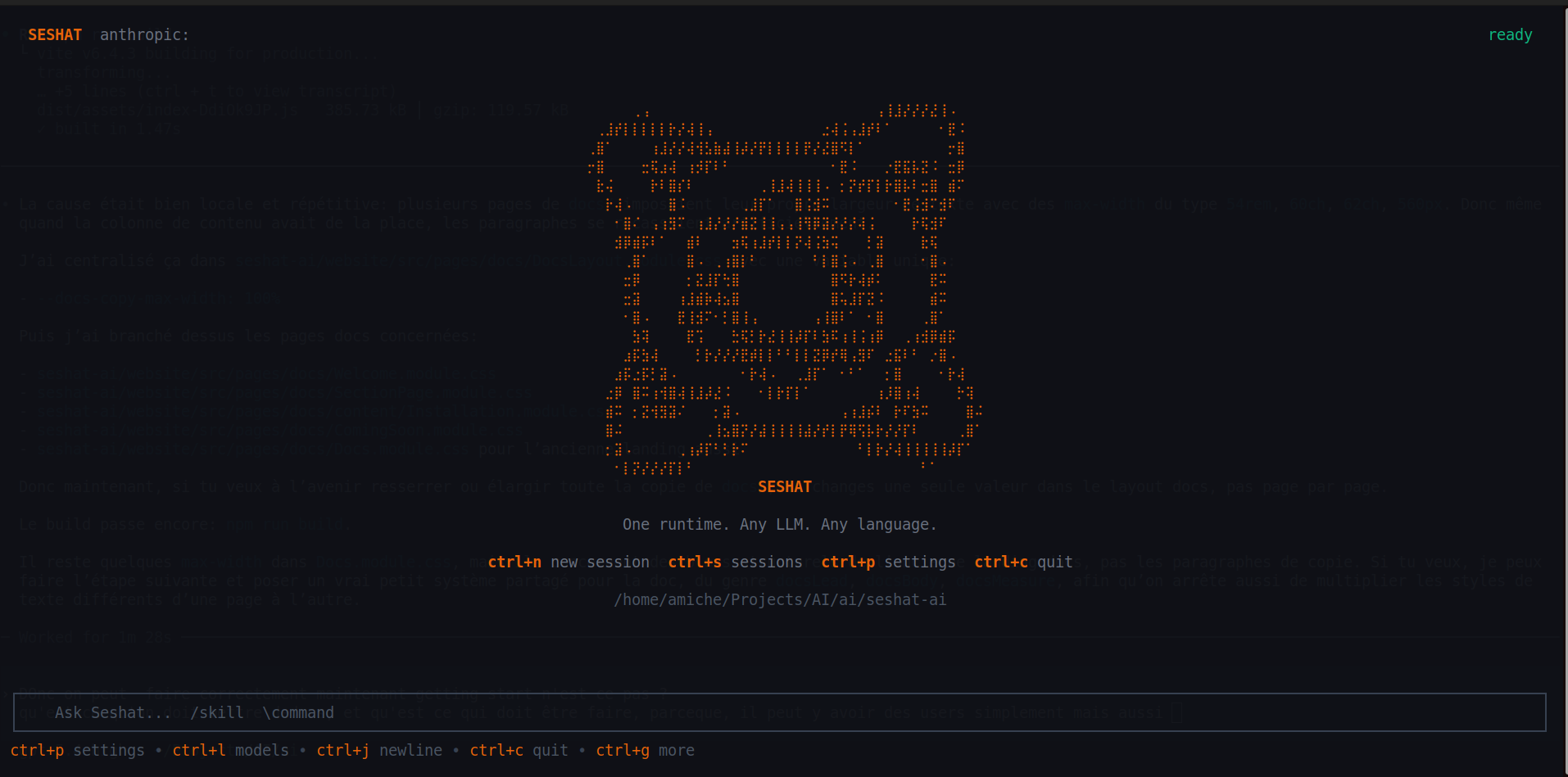
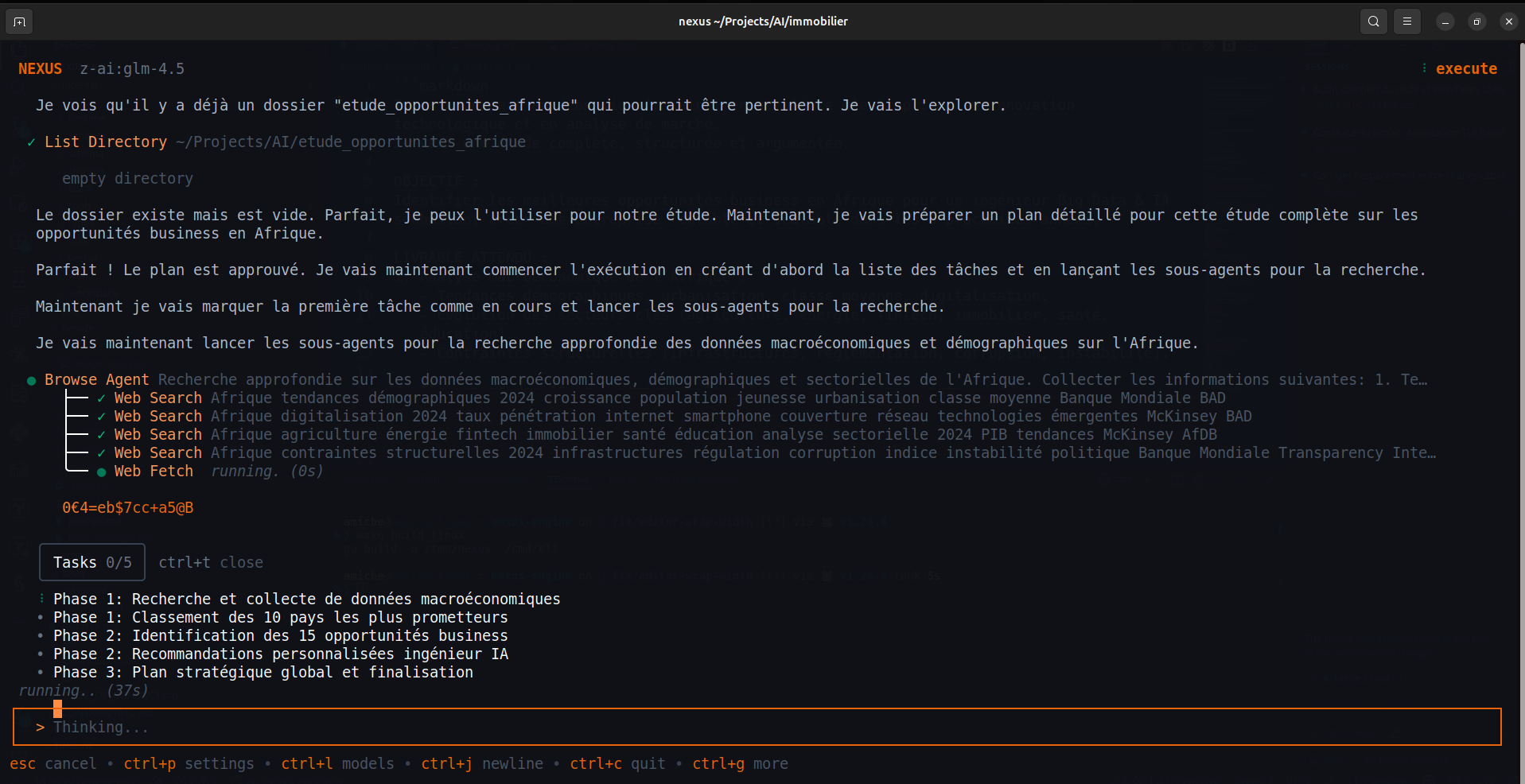
The CLI app opens directly into the terminal UI, where Seshat streams answers, runs tools, keeps session history, and exposes the settings hub without leaving the session. This is where the runtime is easiest to understand, because prompts, tool calls, attachments, approvals, thinking traces, and session state all stay visible.
Settings, providers, and models
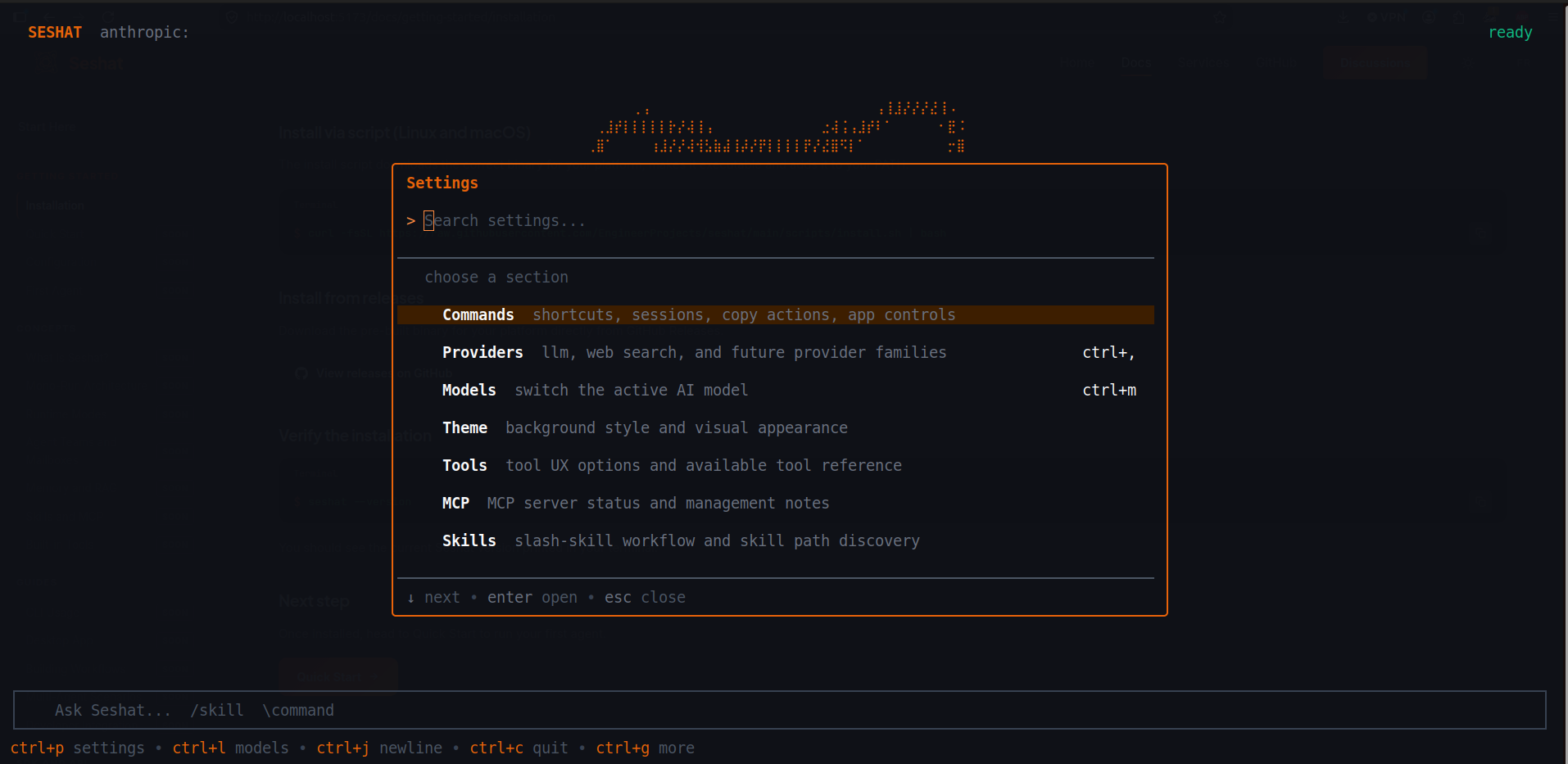
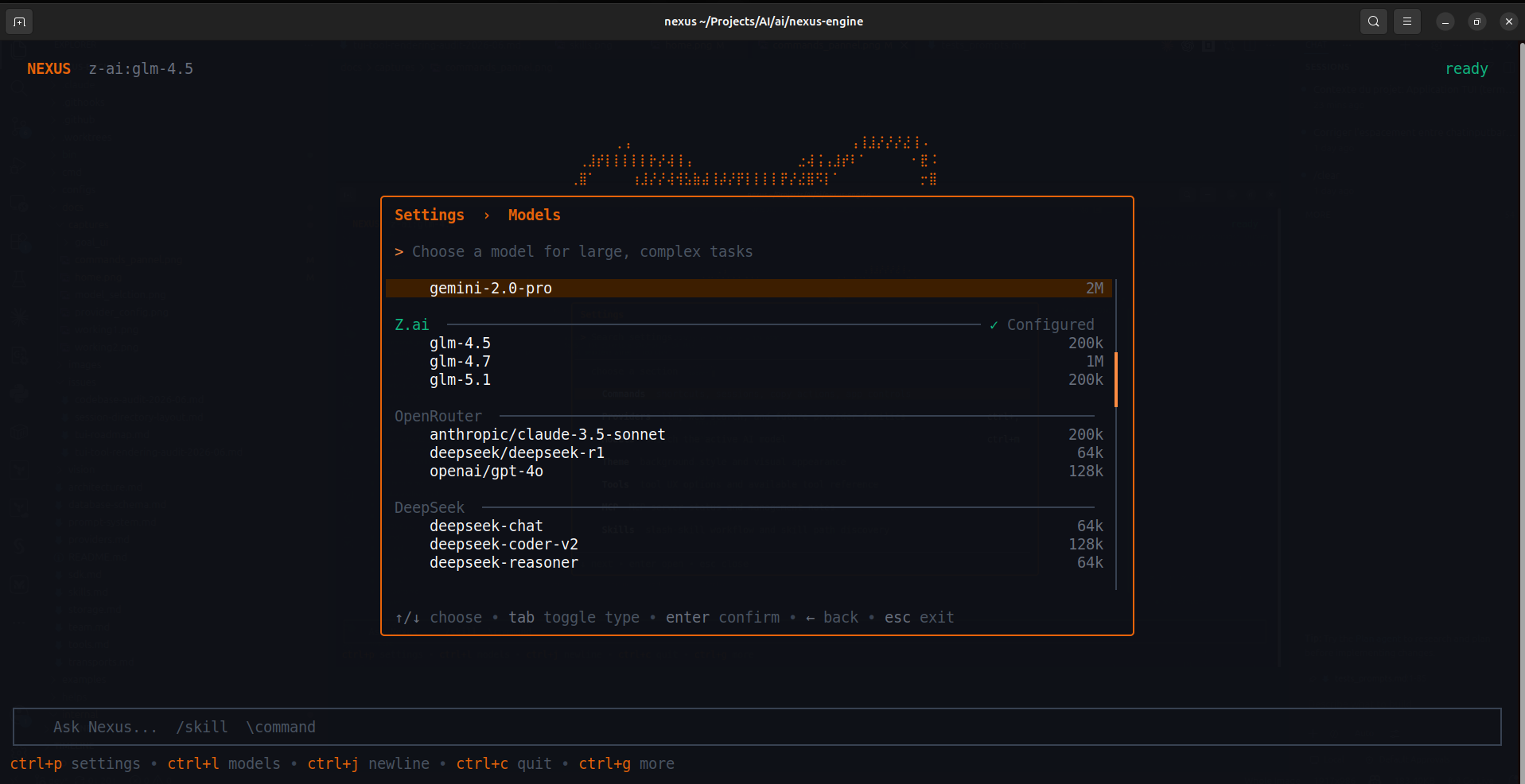
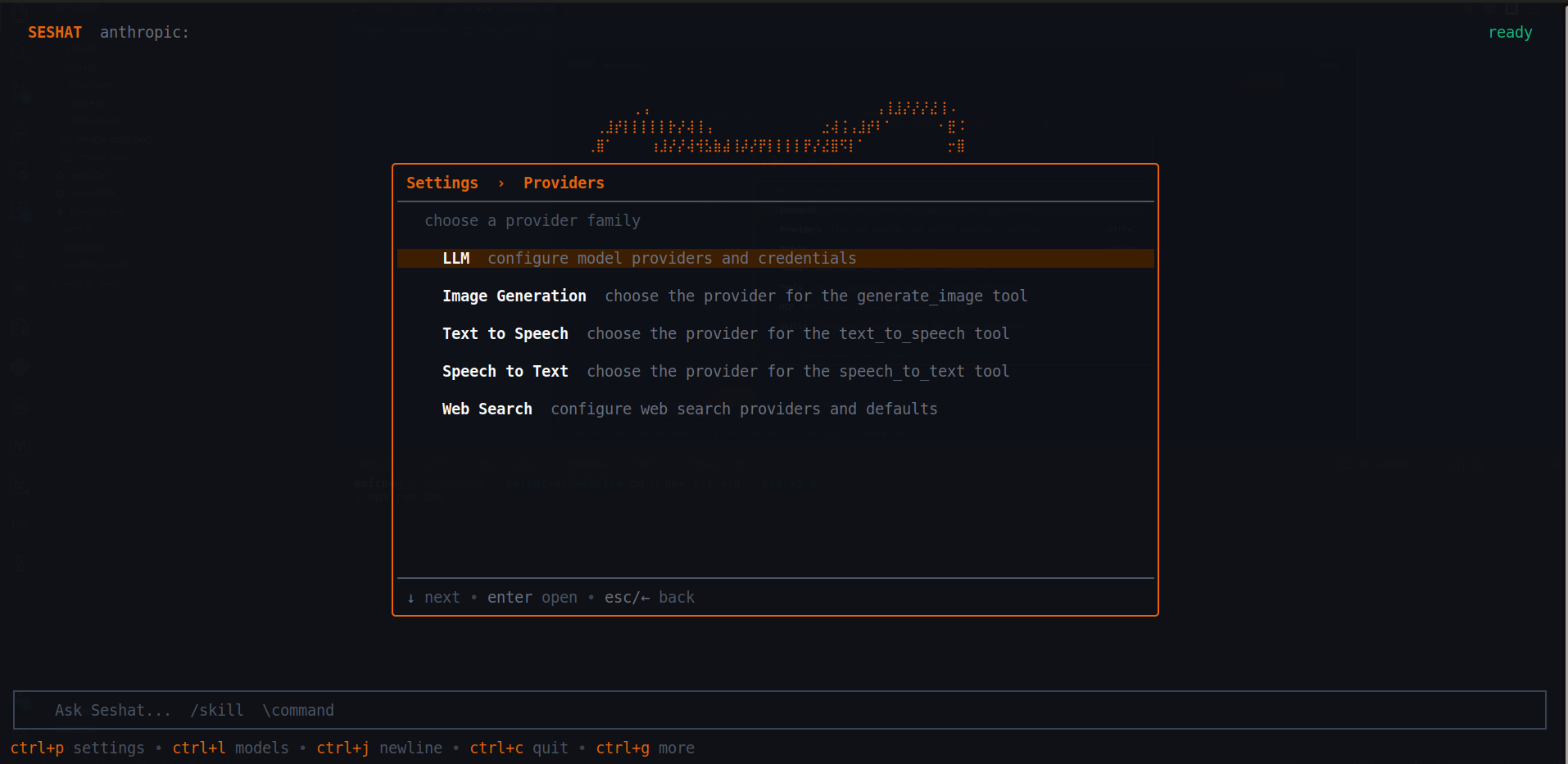
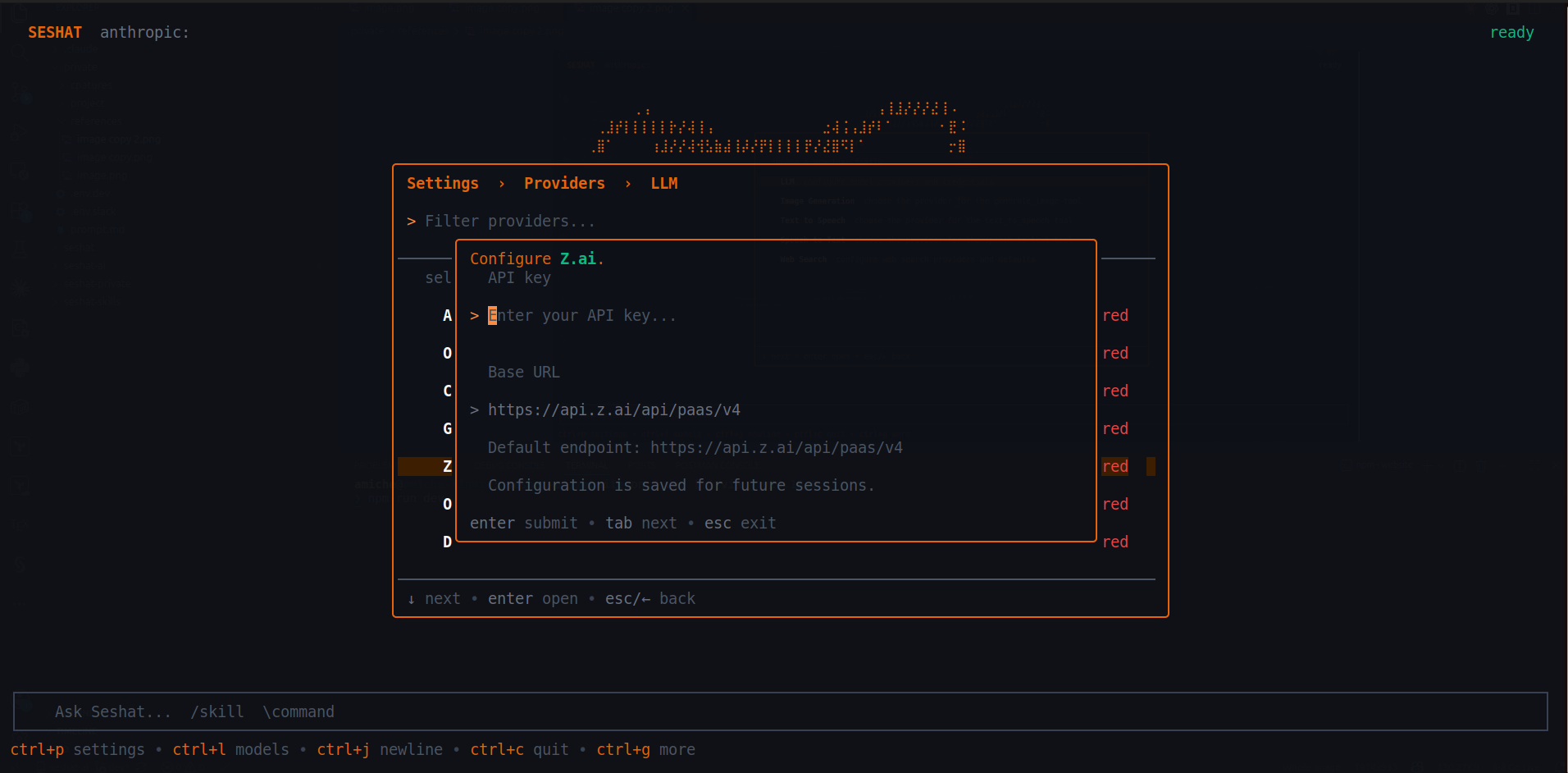
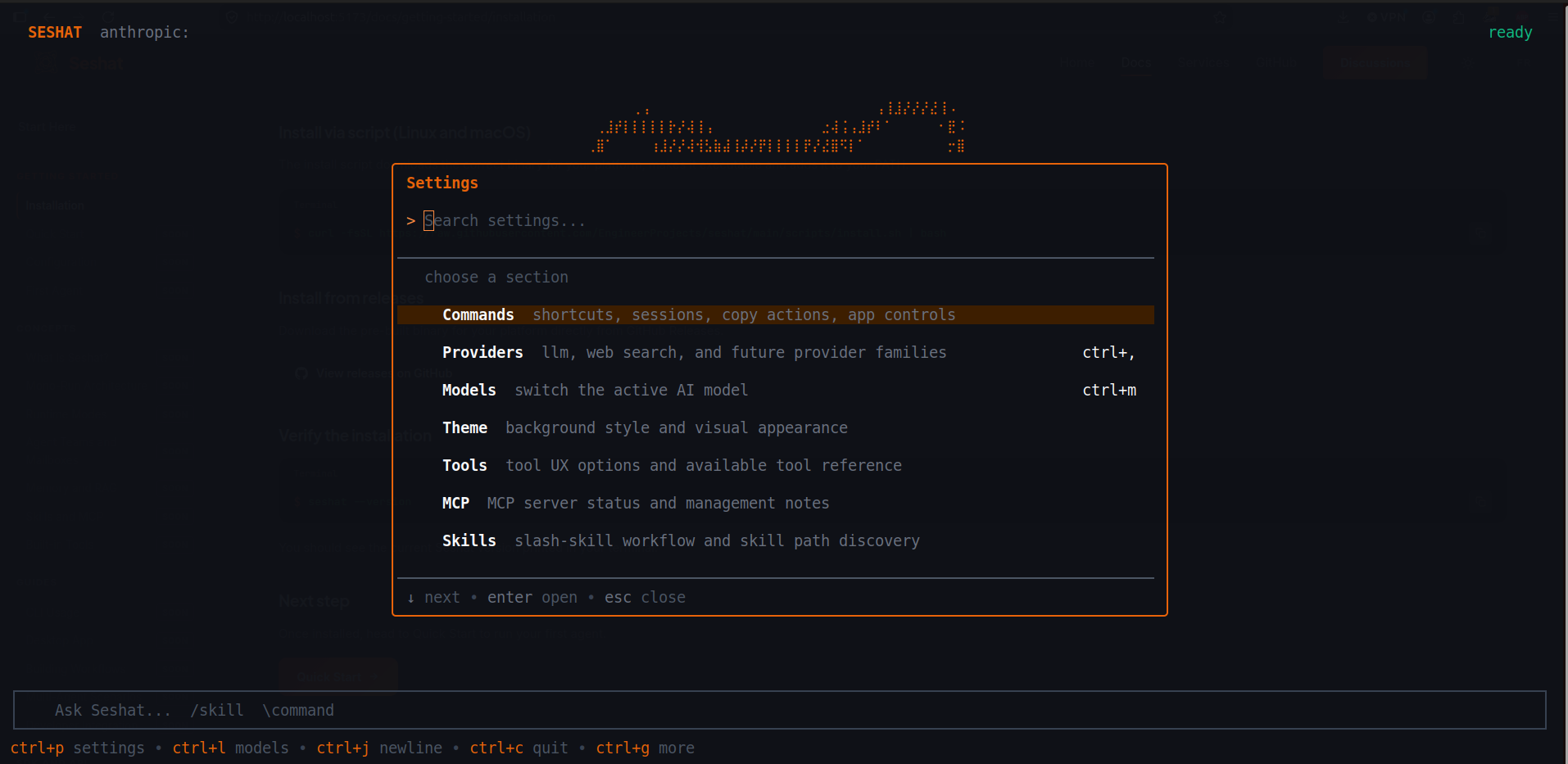
The TUI already exposes the most important configuration flows. ctrl+p opens Settings,ctrl+, jumps to providers, and ctrl+lopens the model picker. That makes the CLI app usable for simple users, repo-first vibecoders, and developers without forcing everyone through raw JSON on the first day. It also makes it practical to move between premium APIs, OpenAI-compatible endpoints, self-hosted services, and local models as your constraints change.
Day-one keybindings
These shortcuts are the practical minimum worth memorizing. They cover navigation, settings, sessions, and the compose box features you will use constantly in a real project.
- ctrl+p opens the Settings hub, including Tools, MCP, and Skills.
- ctrl+, jumps straight into provider management.
- ctrl+l opens the model picker. Some terminals also support ctrl+m.
- ctrl+s opens the session switcher, where sessions can also be renamed or deleted.
- ctrl+n starts a new session without leaving the TUI.
- ctrl+g opens the extended help surface.
- Inside the composer, use @ to mention files, \ to open commands, ctrl+o for the editor, and ctrl+f to add an image or attachment.
Sessions are a first-class workflow
Seshat does not treat a chat as disposable terminal output. Sessions are stored, can be resumed from the CLI, and have their own artifact directories for screenshots, downloads, plans, pasted content, and generated files. That matters for long-running agent work, iterative coding sessions, and open-source feedback loops.
seshat chat --continue
seshat chat --resume <session-id>
seshat sessions list
seshat sessions info <session-id>
seshat sessions prune --older-than 30
Where config and runtime files live
There are two layers to keep in mind. The CLI keeps global runtime state under its own runtime root, and each project keeps local state in a dedicated data directory. By default, the CLI runtime root is ~/.config/seshat-cli, and the project data directory is .seshat at the repository root or current working directory.
~/.config/seshat-cli/
~/.config/seshat-cli/seshat.json
<project>/.seshat/
<project>/.seshat/seshat.json- SESHAT_RUNTIME_ROOT overrides the global runtime root when you need a custom location.
- The global config file is seshat.json under the runtime root.
- The workspace config file is .seshat/seshat.json unless options.data_directory points elsewhere.
- Session artifacts, logs, pasted files, plans, and tool downloads are stored under the runtime root on a per-session basis.
MCP, web search, and skills
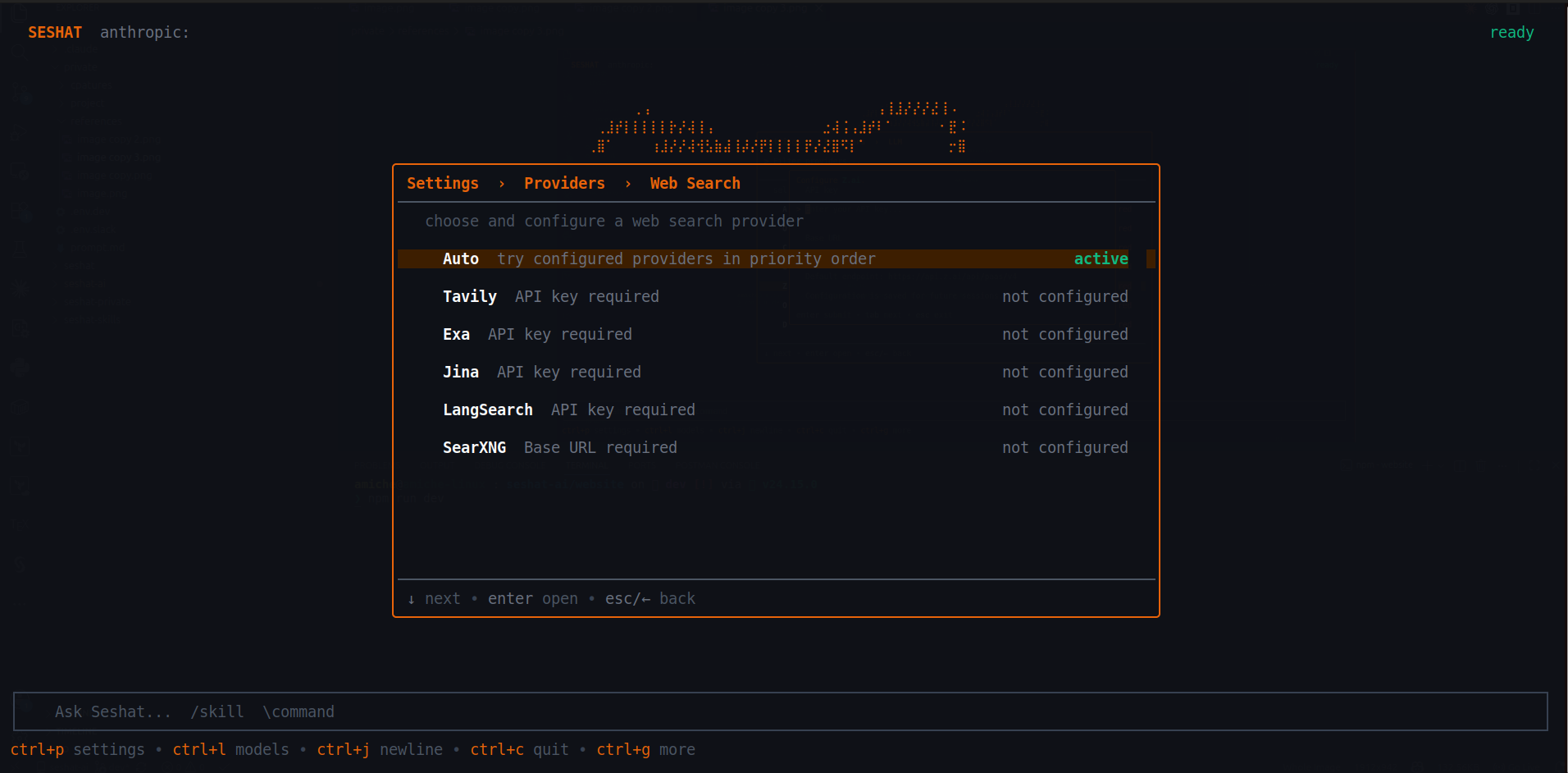
The CLI is already opinionated here. Settings exposes an MCP view for server status and reconnect or disable actions, a Skills view for discovered skills, and provider sub-pages for web-search configuration. Under the hood, these map to themcp, options.skills_paths, andoptions.disabled_skills fields in config. This is where the runtime starts to feel like an extensible agent platform rather than a simple terminal chatbot.
{
  "mcp": {
    "docs": {
      "type": "stdio",
      "command": "npx",
      "args": ["-y", "@modelcontextprotocol/server-filesystem", "."]
    }
  },
  "options": {
    "skills_paths": ["~/.config/seshat-cli/skills", "./skills"],
    "disabled_skills": ["legacy-skill"]
  }
}
A surface that evolves with the runtime
The CLI app is intentionally close to the engine. As the agent runtime grows, the CLI will keep exposing new tools, new workflows, better provider routing, richer MCP support, stronger skill discovery, and more stable automation paths. Its direction will not come only from internal roadmap decisions. It will also move with the open-source community, because this is the place where advanced users can test features early and make the product sharper before those capabilities are frozen into more official surfaces.
What to read next
This page gives the operating map of the CLI. Next, we can split it into focused guides for provider setup, local models, cheap model stacks, MCP servers, skills, and configuration files once the rest of the docs surface is ready.